
Sandbox and test cards
Everything you need to test a Scan to Pay integration end to end without touching production.
The Scan to Pay sandbox is a full clone of the production platform that routes transactions to a simulated bank node. Real card schemes never see your traffic. You can test the entire integration — code creation, payment, webhook, refund, reversal — without moving real money.
This page covers everything sandbox-specific: how to get in, how the test environment differs from production, the test card numbers and what they trigger, and the amount-suffix trick for simulating any bank response code.
Sandbox endpoint
https://qa.scantopay.io/pluto/Every code, query, refund, and reversal call in the Quickstart and the Merchant / PSP guides uses this base URL. The production base is documented per integration in Going live.
Getting sandbox credentials
Sandbox onboarding is handled by the support team.
To request access, email [email protected] with:
- Your company name and the merchant or PSP name you want loaded.
- The administrator's email address (this becomes your login for the Scan to Pay Portal).
- Which integrations you plan to test (e-commerce, in-store QR, in-app, USSD, etc.).
You'll receive:
- A link to set your portal password (expires after 24 hours).
- An API username in the form
merchant-{id}(e.g.merchant-25) orpsp-{id}for PSPs. - Instructions to retrieve your API password from the portal under the API tab.
If you're integrating the Library Lite SDK, you'll also need a separate Lib Lite token. Log in to the portal → email dropdown → Lib Lite Tokens → New API Password. The Lib Lite token is different from your API password.
Switching the Scan to Pay app to test mode
To pay sandbox QR codes, the Scan to Pay app on your test device has to be switched from live to test mode. The app ships in live mode by default.
- Install the Scan to Pay app on a test phone (Android or iOS).
- Open the app and tap the QR scanner.
- Scan the QR code below.
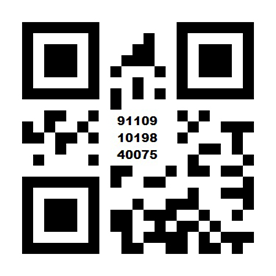
Scan to flip between live and test mode
The same QR toggles back to live mode when you scan it again. The app indicates the current mode on its home screen.
In-App / Library Lite testingLibrary Lite payments use a different test toggle — the
system: "TEST"parameter passed to the SDK at invocation time. The QR above only affects the standalone Scan to Pay app. See In-App Payments.
Test cards
All test cards are 18 digits and break down as follows:
| Positions | Length | Purpose |
|---|---|---|
| 1-14 | 14 digits | Card prefix — determines which simulated bank response fires |
| 15-17 | 3 digits | Arbitrary — pick any digits |
| 18 | 1 digit | Luhn check digit — computed from the first 17 digits to make the whole card pass Luhn validation |
The cards only work in test mode.
Debit card prefixes
| Card prefix (first 14) | Triggers | ISO response code |
|---|---|---|
50010001000105 | Successful purchase | 00 |
50010001000101 | Insufficient funds | 51 |
50010001000102 | Pick up card | 04 |
50010001000103 | Issuer or switch inoperative / bank unavailable | 91 |
50010001000104 | Incorrect PIN | 55 |
50010001000106 | Forced timeout (40-second delay, then bank unavailable) | 91 |
52620501000105 | Format error | 30 |
Credit card prefixes
| Card prefix (first 14) | Triggers | ISO response code |
|---|---|---|
50020001000105 | Successful purchase | 00 |
50020001000101 | Insufficient funds | 51 |
50020001000102 | Pick up card | 04 |
50020001000103 | Issuer or switch inoperative / bank unavailable | 91 |
50020001000104 | Incorrect PIN | 55 |
50020001000106 | Forced timeout (40-second delay, then bank unavailable) | 91 |
52620501000104 | Format error | 30 |
Specific full PAN (16-digit, AMT flow only)
| Full PAN | Triggers | ISO response code |
|---|---|---|
5284971234225595 | Withdrawal amount limit exceeded | 61 |
This PAN is recognised exactly (not as a prefix) by the AMT (PIN-based) flow only — Secure Code, Token, CNP, and MPOS flows ignore it and fall through to the default success response.
Expired-card simulation
Any test card submitted with an expiry date in the past forces ISO response code 33 (expired card). Useful for testing "Your card has expired" UX without needing a separate prefix.
Computing the Luhn check digit
The platform runs Luhn validation on every PAN — same check the real card schemes use. The 18th digit must be the Luhn check digit computed from the first 17, or the transaction is rejected before it reaches the simulated bank node.
Use this calculator to compute it: https://simplycalc.com/luhn-calculate.php
- Take a card prefix from the table above
- Append any 3 digits of your choice (positions 15-17)
- Paste the 17-digit result into the calculator
- Append the returned check digit
Example — 50010001000105 (success debit) + 000 (arbitrary) → paste 50010001000105000 into the calculator → it returns 1 → full PAN is 500100010001050001.
A few pre-computed examples:
| 17-digit input | Check digit | Full valid PAN | Triggers |
|---|---|---|---|
50010001000105 + 000 | 1 | 500100010001050001 | Successful debit |
50010001000101 + 000 | 5 | 500100010001010005 | Insufficient funds |
50010001000102 + 000 | 4 | 500100010001020004 | Pick up card |
50010001000103 + 000 | 3 | 500100010001030003 | Switch inoperative |
50010001000104 + 000 | 2 | 500100010001040002 | Incorrect PIN |
50010001000106 + 000 | 0 | 500100010001060000 | Forced timeout |
52620501000105 + 000 | 0 | 526205010001050000 | Format error (debit) |
50020001000105 + 000 | 0 | 500200010001050000 | Successful credit |
Any PIN, CVV, and future expiry date work in test mode — only the PAN needs to be Luhn-valid.
For 3D Secure flowsThe test cards above bypass 3DS. To test the 3DS challenge, use the amount-suffix trick below with code
05(incorrect CVV / 3DS rejection).
Simulate any bank response code via amount
For any scenario that isn't covered by the prefixes above — anything from 01 (refer to card issuer) to 91 (switch inoperative) — set the cents of the amount to the response code you want simulated, with rand value 123.
| Amount | Simulated ISO response | Meaning |
|---|---|---|
R123.00 | 00 | Success (alternative to the success cards above) |
R123.05 | 05 | Do not honour / incorrect CVV |
R123.51 | 51 | Insufficient funds |
R123.54 | 54 | Expired card |
R123.55 | 55 | Incorrect PIN |
R123.91 | 91 | Issuer or switch inoperative |
R123.xx | xx | Any other ISO response code |
This works with any test card number as long as your merchant is configured to use the debug bank node (the default in sandbox). The amount-suffix mechanism overrides the card-prefix mechanism, so use it when you want a specific failure mode that isn't tied to a card.
The full list of ISO response codes is on ISO response codes.
Differences between sandbox and production
The sandbox is not a perfect mirror. Understand these gaps before you go live.
| Concern | Sandbox | Production |
|---|---|---|
| Card network | Simulated bank node — no traffic reaches Visa or Mastercard | Real card scheme traffic |
| Settlement | No actual settlement to merchant bank account | Real settlement per acquirer schedule |
| Limits and velocity rules | Configurable per test merchant; may be relaxed | Production rules enforced by Sky service |
| Fraud detection | May be disabled or use test policies | Full fraud rules active |
| Webhook delivery | Same retry / timeout behaviour as production | Same |
| Notification encryption | Same AES/CBC payload format and key flow | Same |
| Response timing | Slightly faster than production | Variable based on bank response time |
| Data persistence | Test data is not cleaned automatically | — |
| Test cards | Work only in test mode | Real cards only; test prefixes rejected |
The most common surprise: webhook payload formats and signing are identical between sandbox and production, so your webhook handler tested in sandbox works unchanged on go-live.
Resetting test data
Test transactions, codes, and notifications persist in the sandbox indefinitely — they don't reset automatically. If you need a clean slate (for example, to repeat an acceptance test from scratch), email [email protected] with your merchant ID.
You can also create unlimited new test merchants. Many integrators keep one per integration variant (web checkout, in-store, in-app) to keep results separated.
What's next
- Try the API end to end → Quickstart
- Map response codes to user-facing messages → ISO response codes
- Understand which TxState each scenario produces → Transaction states
- Promote to production → Going live
Updated 4 months ago